Instructions
Connect your band.
You can browse the app without a band. To see your own readings, verify your order once and connect your band over Bluetooth.
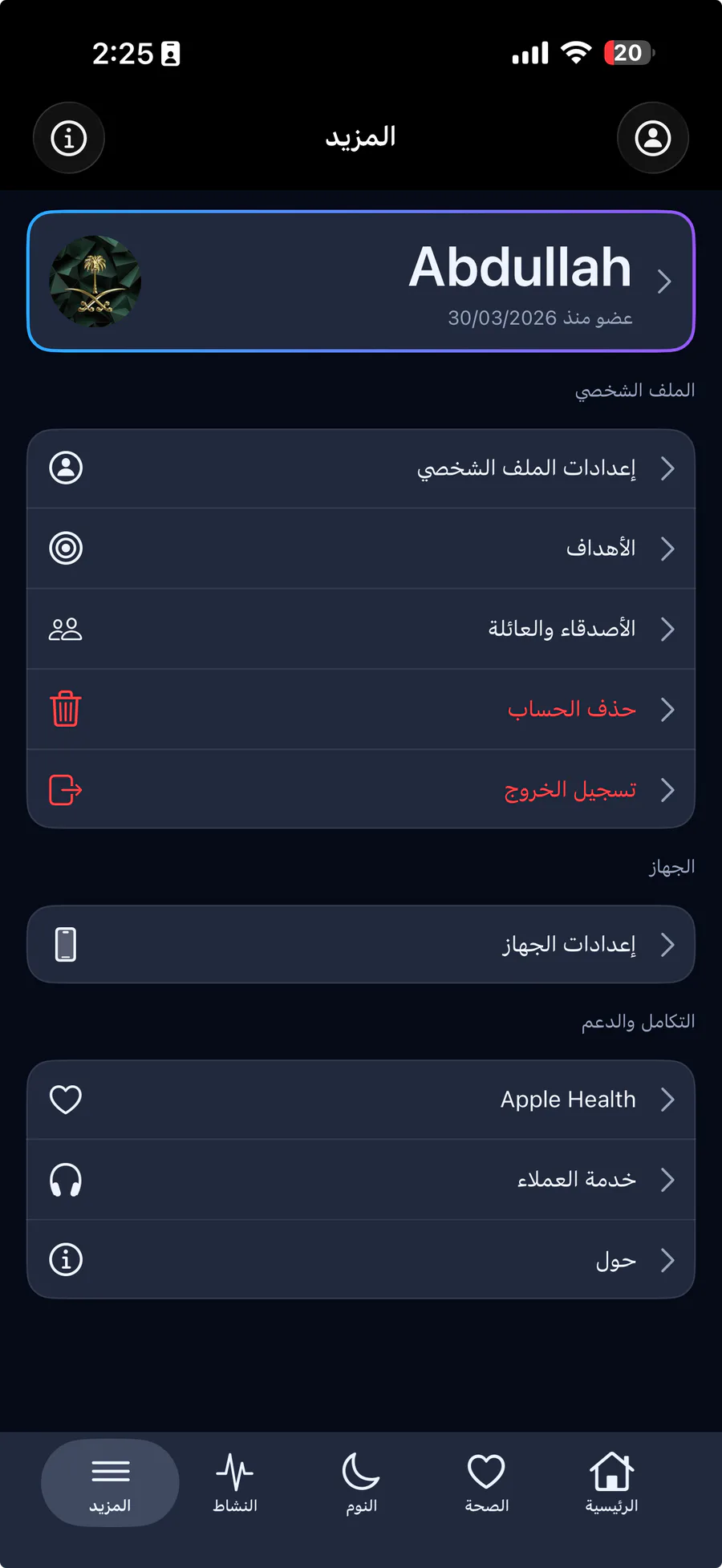
Open Device Settings
In the app, tap More, then Device Settings, then Add device.
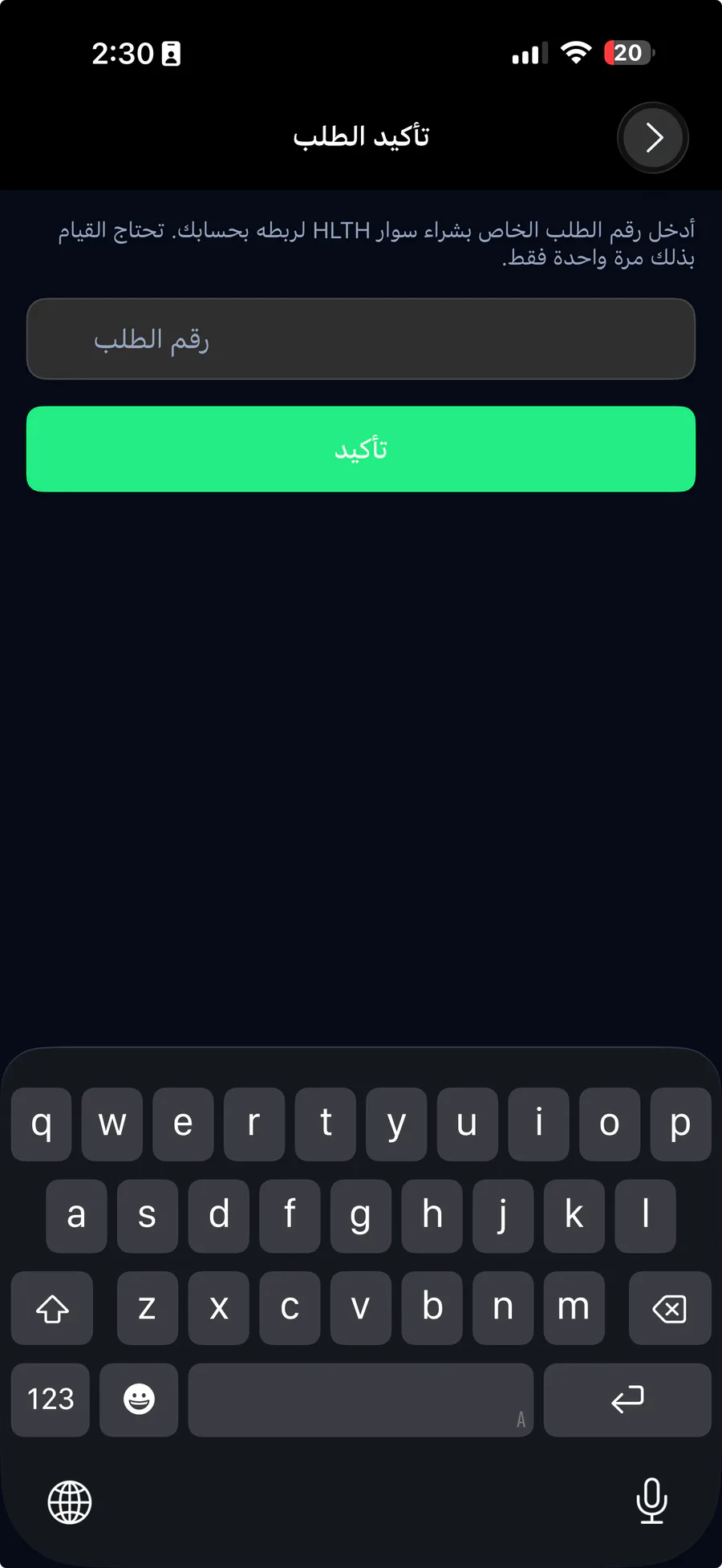
Verify your order
Enter the order number from your HLTH purchase and tap Verify. You only need to do this once; if your account is already verified, you go straight to the next step.
Number not found? Check it for typos, or contact support.
Choose your band
Wake your band and keep it close. Bands in range appear in the list with a signal hint. Tap yours.
Nothing listed? Check that Bluetooth is on and the band is awake, then tap Scan again. The first time, allow HLTH to use Bluetooth.

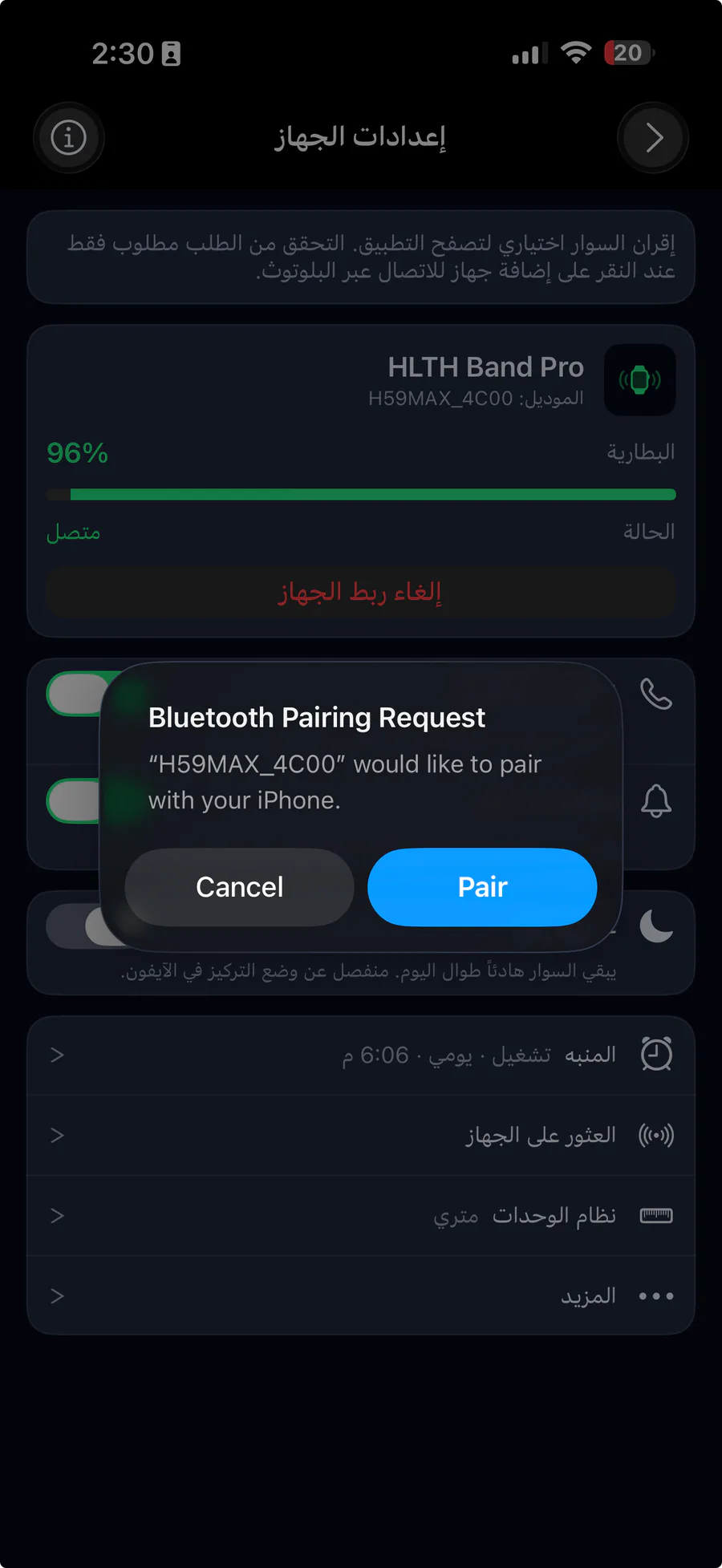
Allow the Bluetooth pairing
Your iPhone asks to pair with the band. Tap Pair.
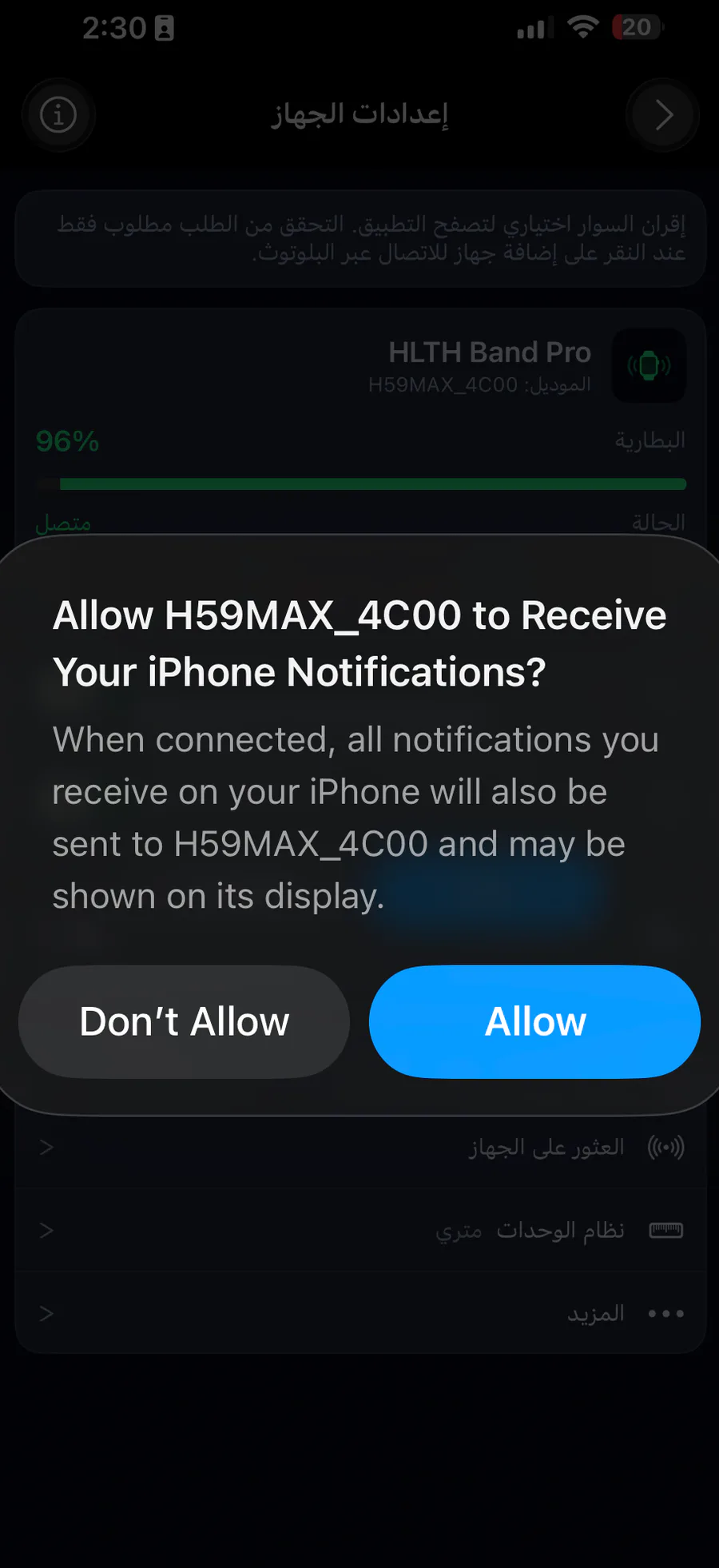
Let the band alert you
Your iPhone then asks whether the band may receive your iPhone notifications. Tap Allow: for incoming calls and app notifications, the band vibrates and its side light flashes green.
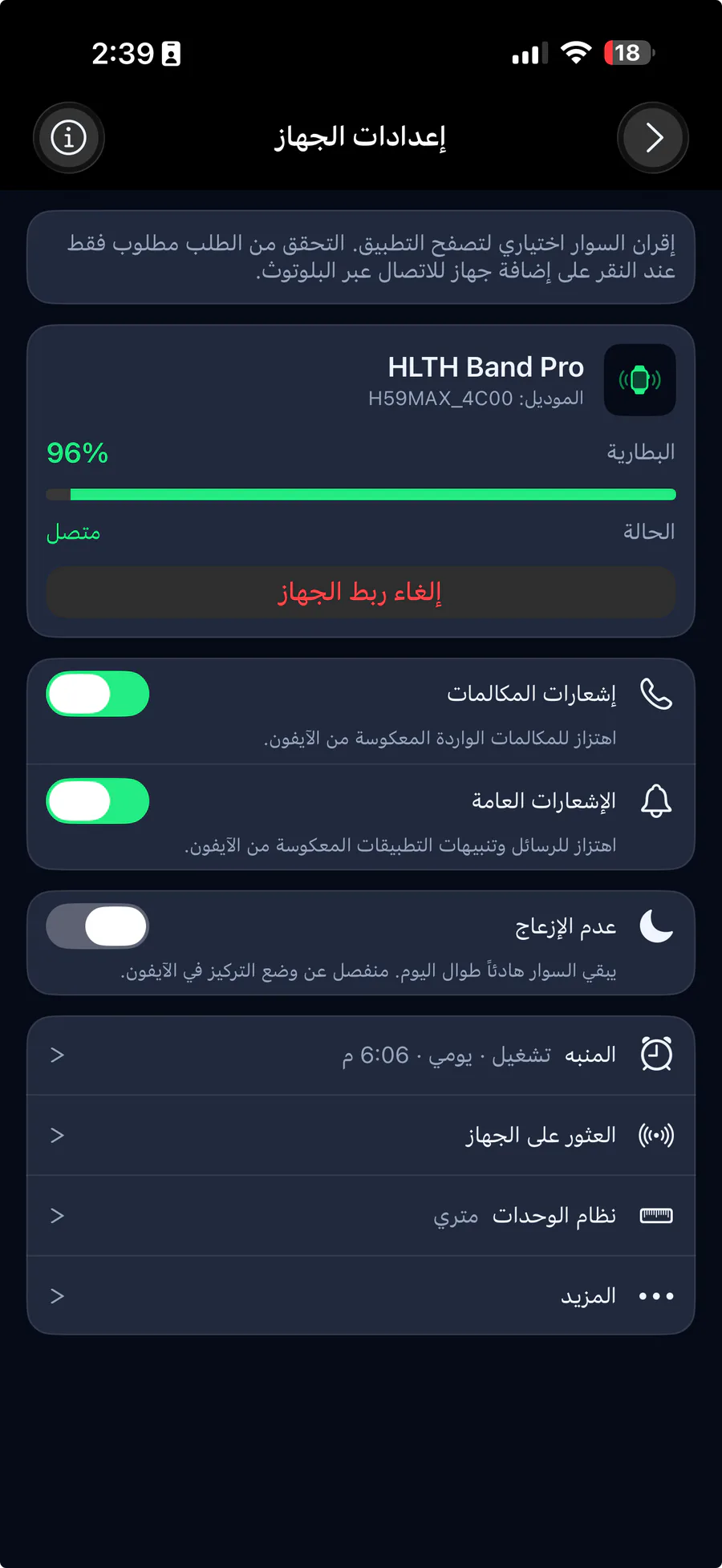
You're connected
Device Settings now shows Connected and the battery level. The app sets the band's clock and brings in your recent history; Home fills in over the next minute or two. From then on, the app reconnects to your band by itself.